See it in action
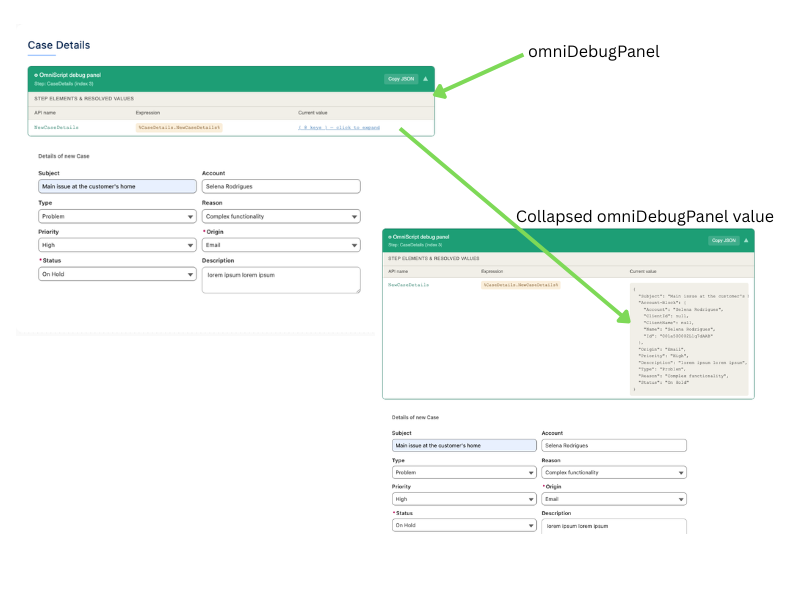
Collapsed and expanded.
Side by side.
The panel sits inside your OmniScript step. Click any row to reveal the full JSON value without leaving the screen.
A Lightning Web Component that attaches a live debug panel to any active OmniScript step — showing every field's API name, expression path, and current value in real time. No manual text blocks. No cleanup before go-live.
Drop it into your OmniScript and instantly see the live state of every field — without touching your component logic.
Displays the current value of every field in omniJsonData as your OmniScript runs — updated in real time as users navigate between steps.
Shows the exact API name and expression path for each field (e.g. %StepName.FieldName%) so you can reference them precisely in your logic.
One-click Copy JSON button exports the full omniJsonData snapshot to your clipboard — paste it into your notes or share with your team instantly.
Complex nested objects are collapsed by default. Click any row to expand and inspect the full JSON tree without cluttering your view.
No debug text blocks to remove before go-live. The panel is a standalone LWC — remove it from the step when you're done, nothing else changes.
Built as a Lightning Web Component using the OmniScript LWC framework. Drops straight into any OmniScript step with no extra configuration.
The panel sits inside your OmniScript step. Click any row to reveal the full JSON value without leaving the screen.
Get the debug panel into your org in minutes — either via Salesforce CLI or a direct package install.
Clone the repository to your local machine.
Authorize your Salesforce org with the CLI.
Deploy the component to your org.
Add the LWC to your OmniScript step as a custom component and start debugging.
A one-click Salesforce Unlocked Package install is in progress. Once available, you'll be able to install the debug panel directly into any org with a single URL — no CLI required.
In the meantime, use the GitHub deployment method. It takes less than 5 minutes.
Want to be notified?
Star the GitHub repo and you'll get notified when the package drops.
No license, no cost, no account required. Clone it, deploy it, use it. Contributions and feedback welcome on GitHub.